CredentialCal User Manual
Updated: July 2026
Who this is for: the office manager or credentialing admin of a 1–10 provider practice. No technical background needed.
CredentialCal tracks every provider's licenses, DEA registrations, board certifications, payer enrollments, CAQH attestations, and hospital privileges — and warns you before any of them expire.
Common tasks — "How do I…?"
| I want to… | Go to |
|---|---|
| See what's about to expire | Dashboard — the "Expiring Next 90 Days" panel |
| Add a new doctor / PA / clinician | Providers → + Add Provider |
| Record a license, DEA, or board cert | Provider page → Credentials → + Add |
| Mark a license as renewed | Edit the credential and update its expiration date |
| Bring in our existing Excel tracking sheet | CSV Import |
| Track an insurance (payer) enrollment | Payer Enrollments |
| Keep CAQH from lapsing | CAQH Tracker |
| Change who gets alert emails | Settings → Alert Email |
| Get warned earlier (or later) before deadlines | Settings → Alert Thresholds |
| Silence an alert I've already handled | Dashboard → Active Alerts → Dismiss / Snooze / Resolve |
| Hand a compliance summary to an administrator | Reports → Export CSV or Print / PDF |
| Understand what a button on screen does | Turn on Help mode — the "?" toggle in the header |
1. Getting Started
Sign up
From the landing page, click Start free trial (/sign-up). You can register with:
- Google — click "Sign up with Google."
- Email + password — enter your name, email, and a password.
Every new account starts a 14-day free trial — no credit card required.
Practice setup
After signing up you land on the practice setup form (/onboarding):
| Field | Required | Description |
|---|---|---|
| Practice Name | Yes | Name shown throughout the app |
| Practice NPI | No | The group/organization NPI (Type 2) |
| Credentialing Contact Name | No | Pre-filled from your account name |
| Alert Email | Yes | Where expiration alert emails are sent |
Click Set up practice and you land on the dashboard.
If you skip this form, nothing breaks: the first time you open the dashboard, a practice is created for you automatically (named after your email) with the trial already running. You can fill in the real practice name, NPI, and Alert Email at any time under Settings.
1b. Help mode (hover help in the app)
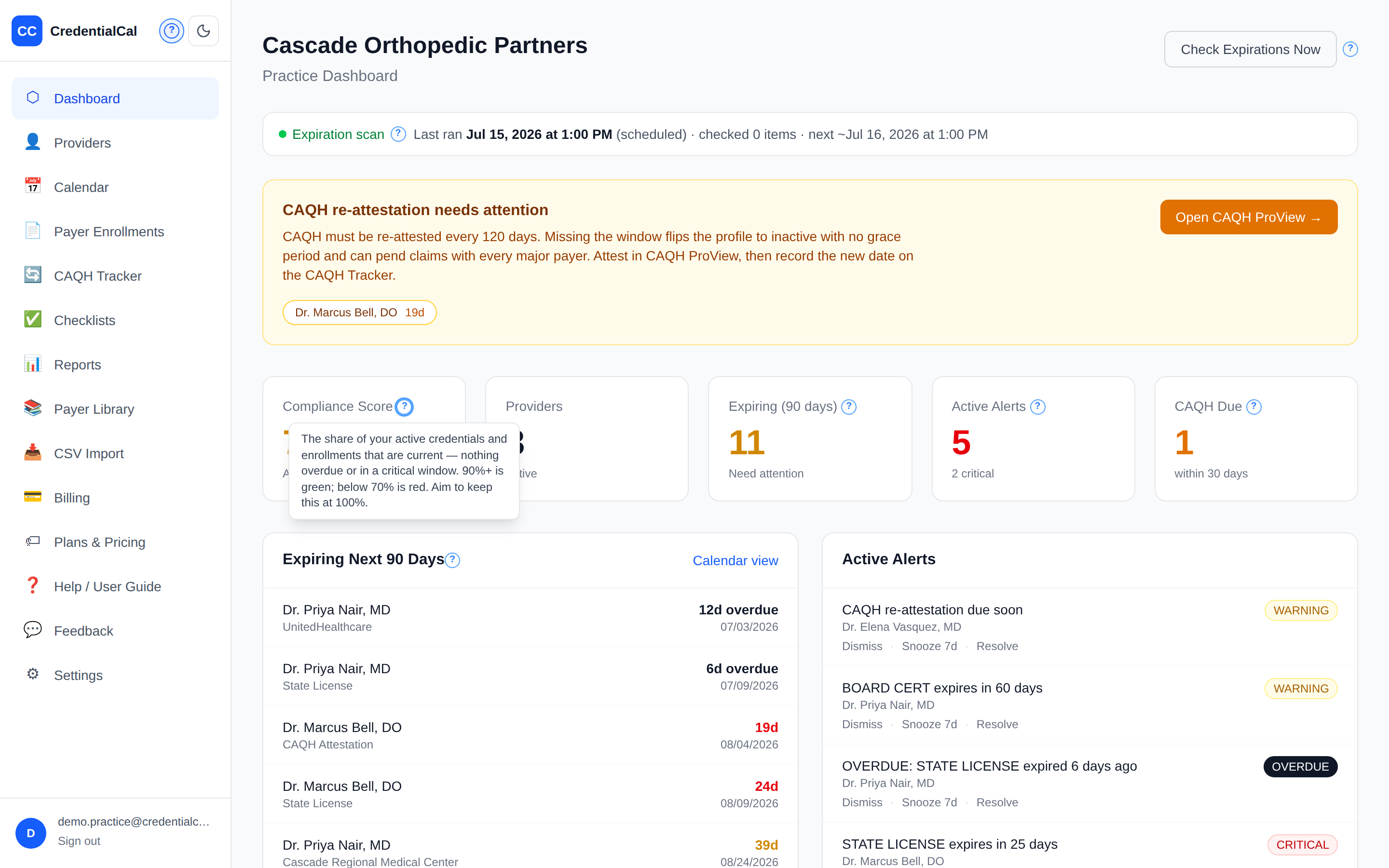
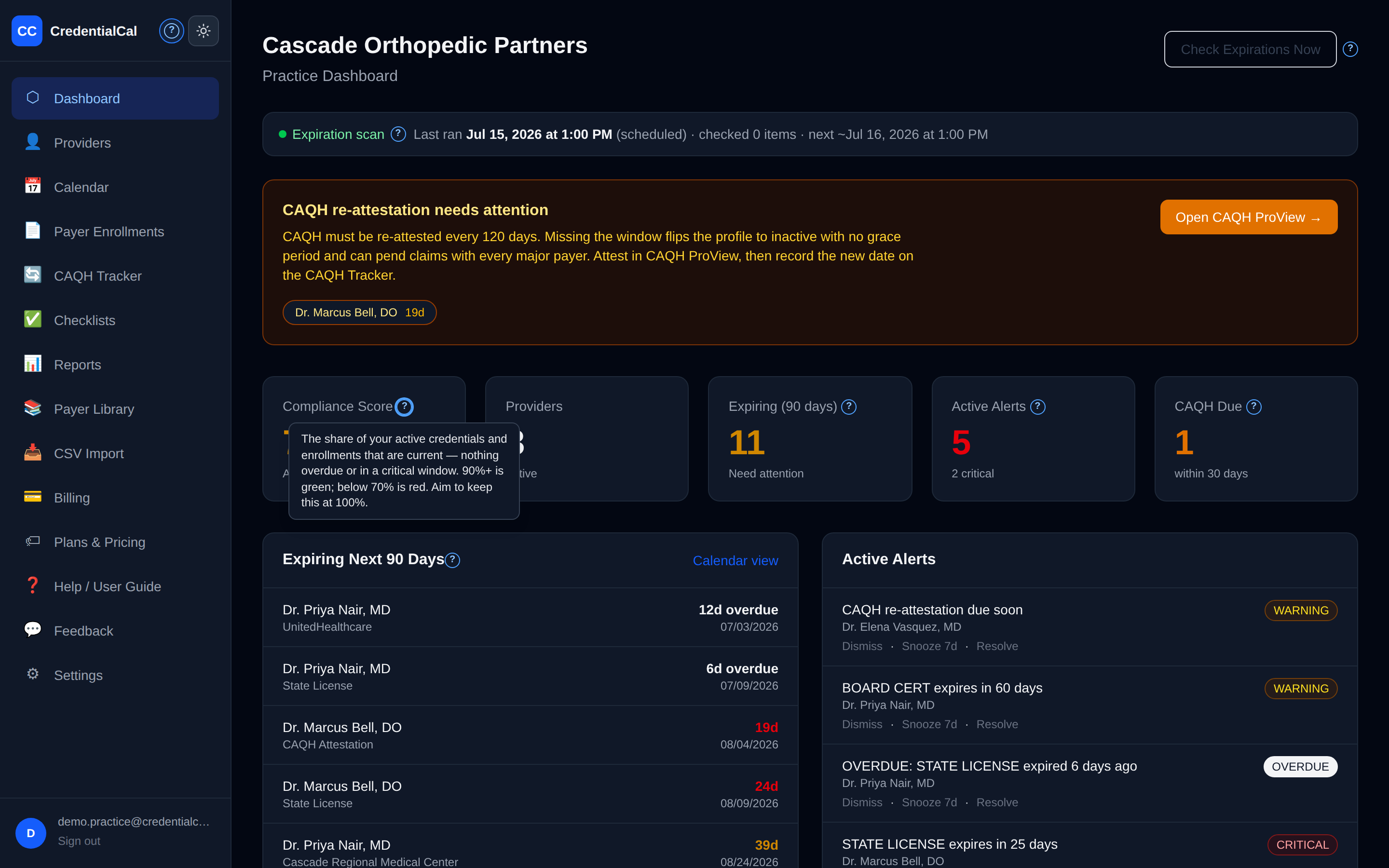
Every main screen has built-in explanations. Click the round "?" button in the top of the sidebar (next to the theme toggle) to turn on Help mode: small blue "?" markers appear beside the important buttons, scores, and labels. Hover (or tap, on a phone) any marker to read what that control does in plain language. Click the "?" button again to turn the markers off. The app remembers your choice.
2. Dashboard Overview
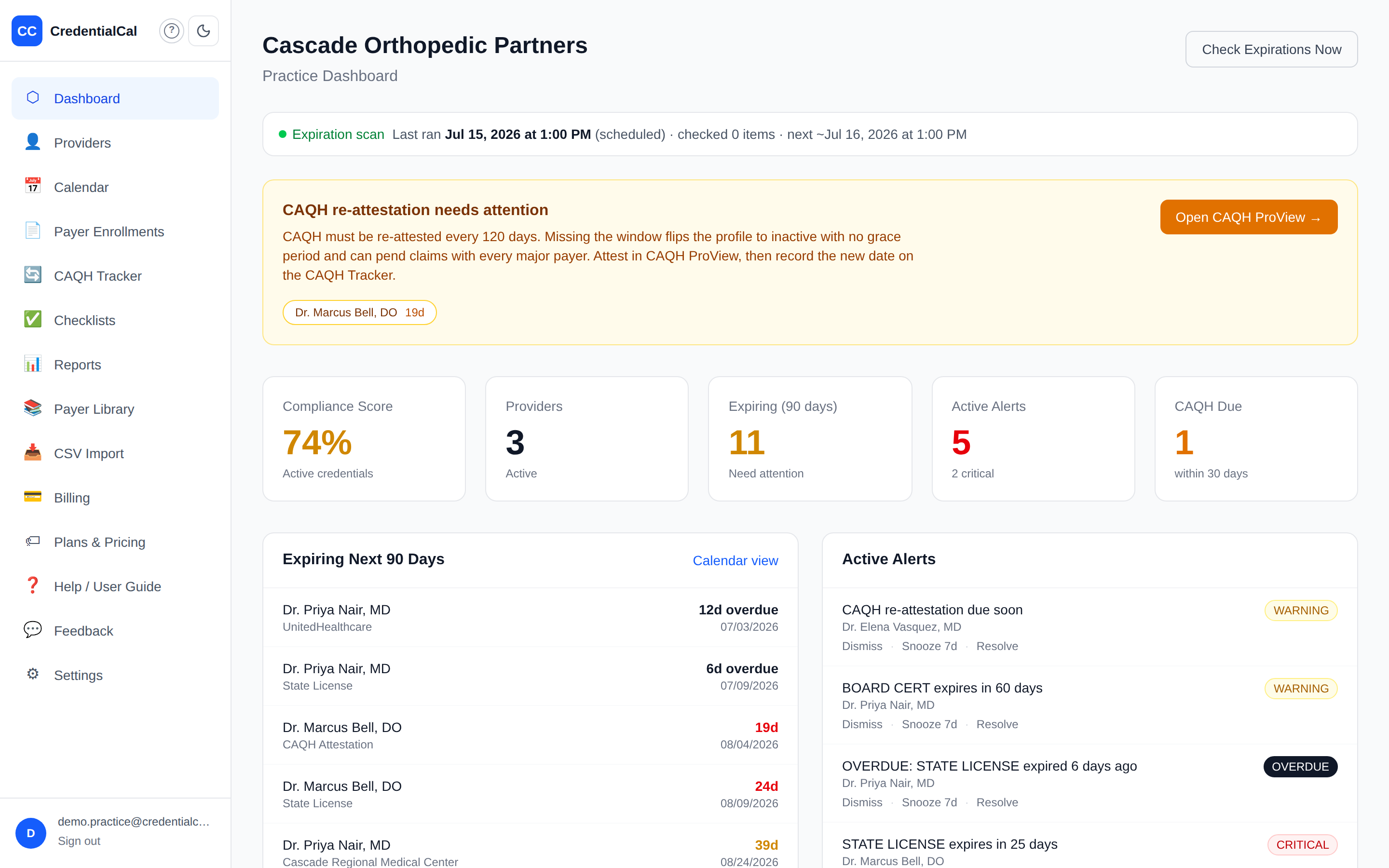
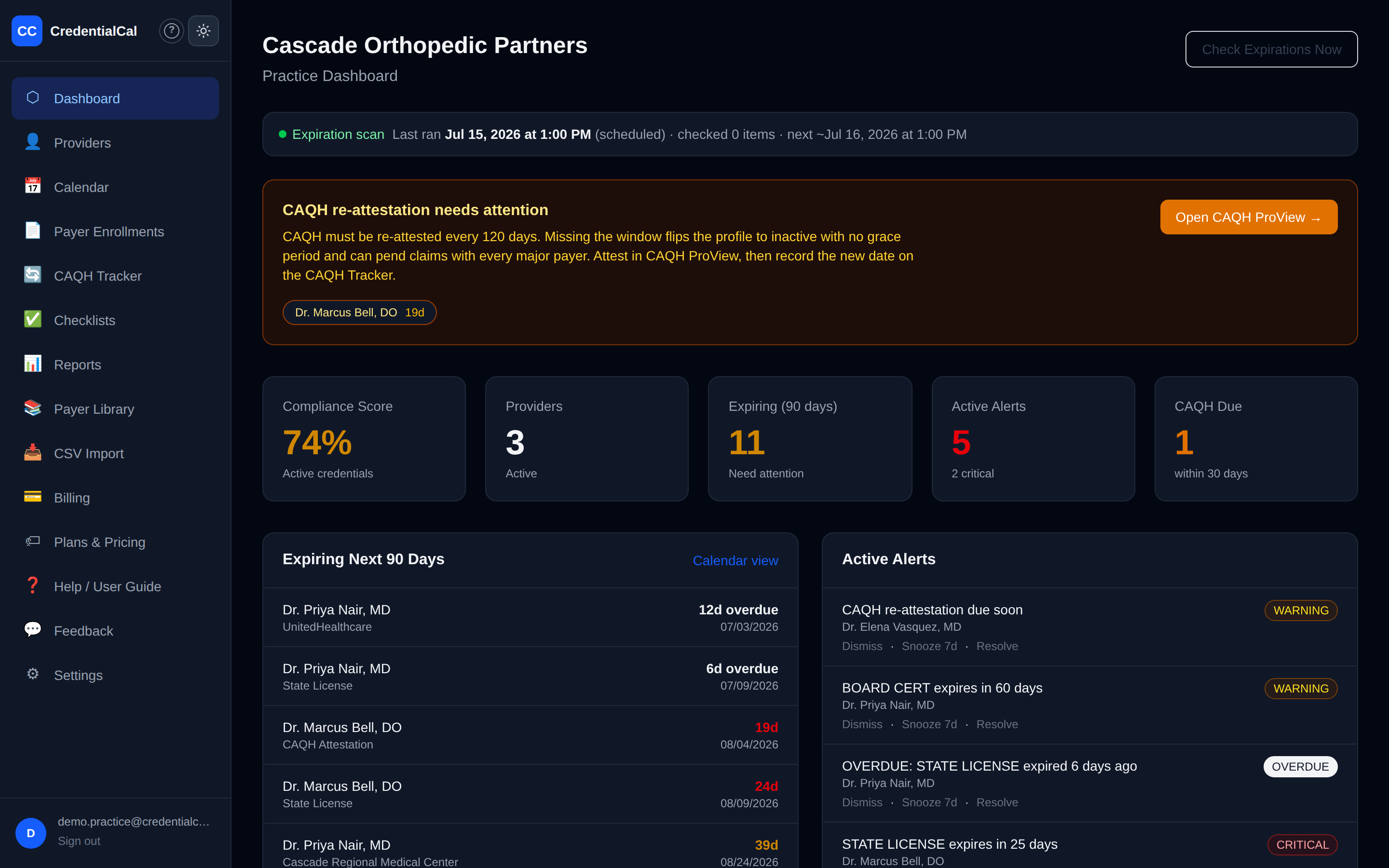
URL: /dashboard — the home screen after login.
Scheduler health strip
Directly under the header, a one-line status shows when the automatic expiration scan last ran, how many items it checked, and when the next run is expected. If it says no scan has run yet, use Check Expirations Now (top-right) — this is how you confirm alerts are actually firing on schedule.
Stats row (5 tiles)
- Compliance Score — the share of active credentials that are current (not expiring within 90 days, not overdue). Green ≥ 90%, yellow ≥ 70%, red below 70%. Aim for 100%.
- Providers — count of active providers.
- Expiring (90 days) — credentials, enrollments, CAQH, and privileges lapsing within 90 days.
- Active Alerts — unresolved, unacknowledged alerts. Red if any are CRITICAL or OVERDUE.
- CAQH Due — providers whose CAQH re-attestation is due within 30 days.
Panels
- Expiring Next 90 Days — up to 12 items, soonest first, color-coded: yellow = expiring within 90 days, red = within 30 days, bold = overdue. Click a row to open that provider.
- Active Alerts — up to 8 live alerts, each with Dismiss · Snooze 7d · Resolve buttons (see Alert Engine).
- Provider Status — one row per provider; the dot on the right is their worst credential status (green / yellow / red).
- Quick Actions — six shortcuts: Add Provider, Import CSV, Payer Library, CAQH Status, Calendar View, Compliance Report.
Check Expirations Now
The top-right button runs the full expiration sweep immediately instead of waiting for the daily scan, and shows how many new alerts it created. Use it after importing or editing credentials.
3. Provider Management
Provider list (/providers)
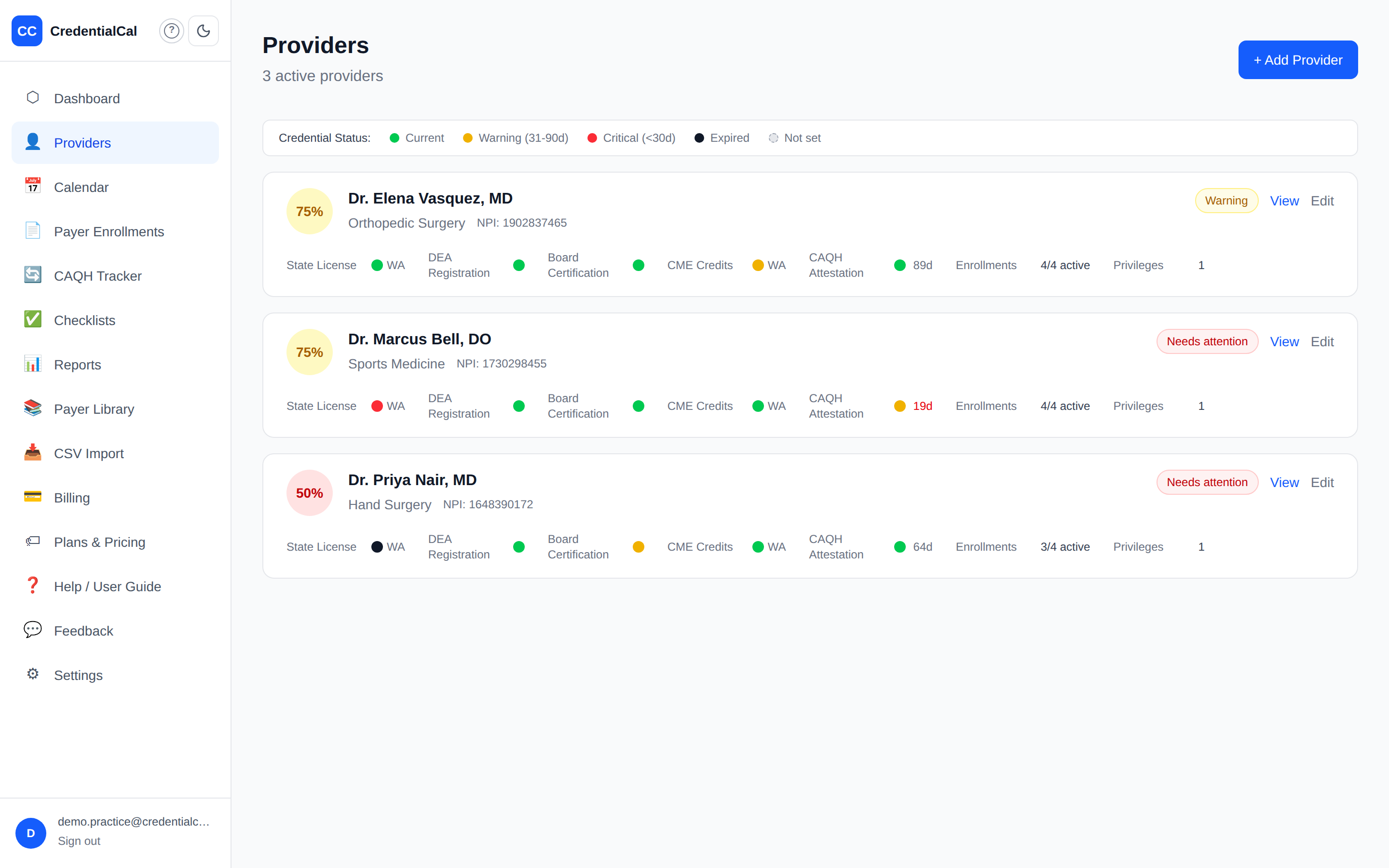
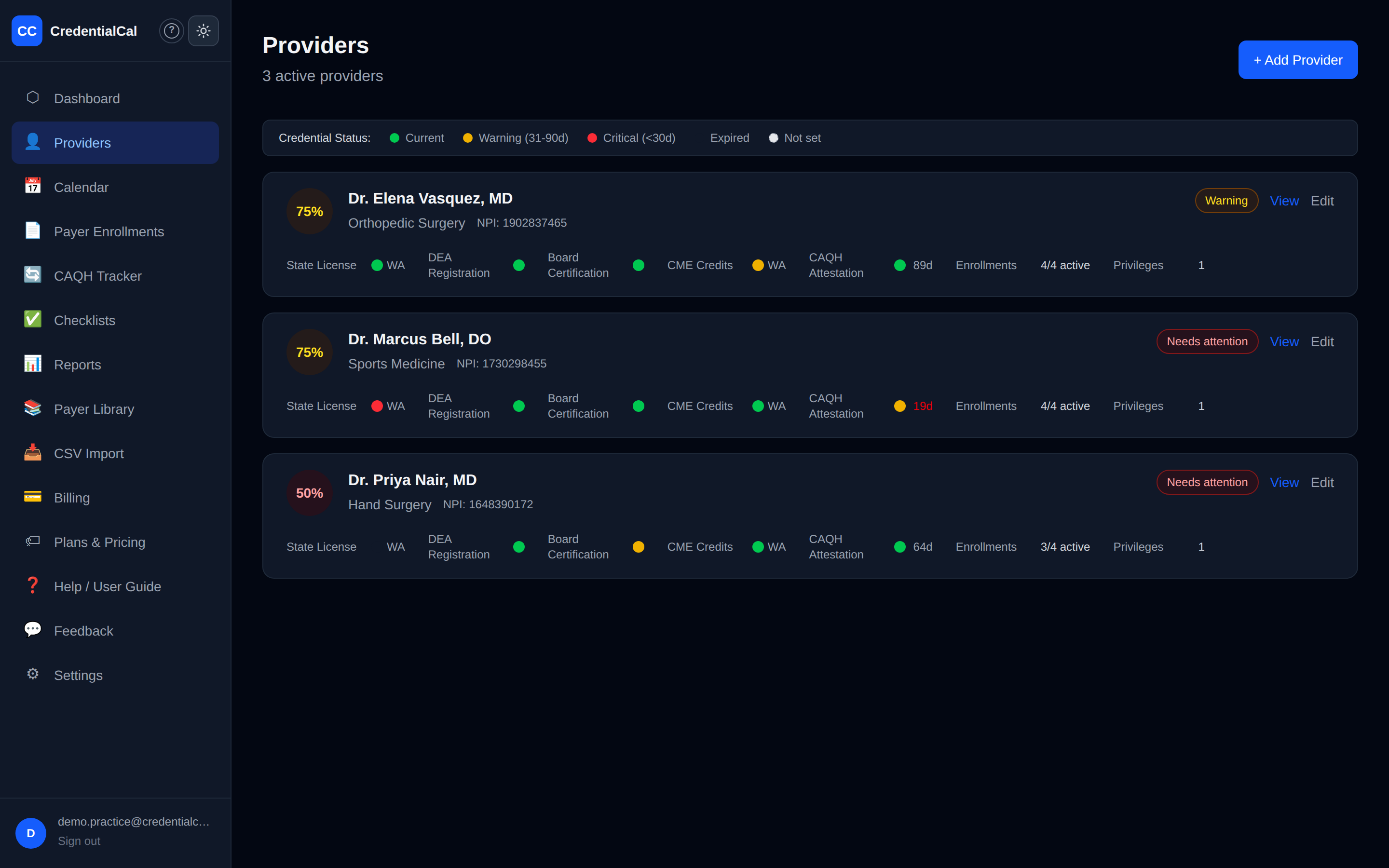
One card per active provider: compliance score circle, specialty, NPI, an overall status badge (All clear / Warning / Needs attention), and a dot-grid of every credential type — green current, yellow expiring within 90 days, red within 30, black expired, dashed = not entered yet.
Add a provider (/providers/new)
Click + Add Provider on the list (or the dashboard quick action). Only the name is required — everything else can be added later:
| Field | Required | Notes |
|---|---|---|
| Full Name | Yes | e.g., "Dr. Jane Smith" |
| NPI Number | No | Individual provider NPI (Type 1) |
| DEA Number | No | e.g., AB1234567 |
| Specialty | No | Free text, e.g., "Orthopedic Surgery" |
| Hire Date | No | Date picker |
Provider detail (/providers/[id])
The hub for one provider: an info card, plus tables for Credentials, Payer Enrollments, CAQH Attestation (once configured), and Hospital Privileges — each with its own + Add and Edit links.
Edit / deactivate (/providers/[id]/edit)
Same form pre-filled, plus a Deactivate provider button. Deactivating hides the provider from all active views (their history is kept, nothing is deleted) — and lowers your monthly price if it drops your provider count.
4. Credential Management
Add a credential
From the provider's page, click + Add in the Credentials section:
| Field | Required | Notes |
|---|---|---|
| Credential Type | Yes | See types below |
| State | Shown for state licenses and DEA | |
| License / Certificate Number | No | |
| Issuing Body / Board | No | e.g., "American Board of Internal Medicine" |
| Issued Date | No | |
| Expiration Date | No — but required for alerts | No date = nothing to warn about |
| Renewal URL | No | Deep link to the renewal portal |
| Notes | No |
Credential types:
| Type | Description | Typical cycle |
|---|---|---|
| State License | State medical license | 1–3 years, per state |
| DEA Registration | Controlled-substance registration | 3 years |
| Board Certification | Specialty board cert | Varies by board |
| CME Credits | Continuing-education tracking | State / board requirements |
| CAQH | CAQH attestation (usually tracked on the CAQH page instead) | 120 days |
Renew / edit / remove
Click Edit in the credentials table. To record a renewal, update the expiration date — related alerts stop matching once the new date is out of the warning window. Remove credential hides it from active views (soft delete; history kept).
5. Payer Enrollment Tracking
A payer enrollment is a provider's registration with one insurance company so that company pays their claims. If it lapses, that payer stops paying until re-enrollment goes through — which can take 60–90 days.
Practice-wide view (/payer-enrollments)
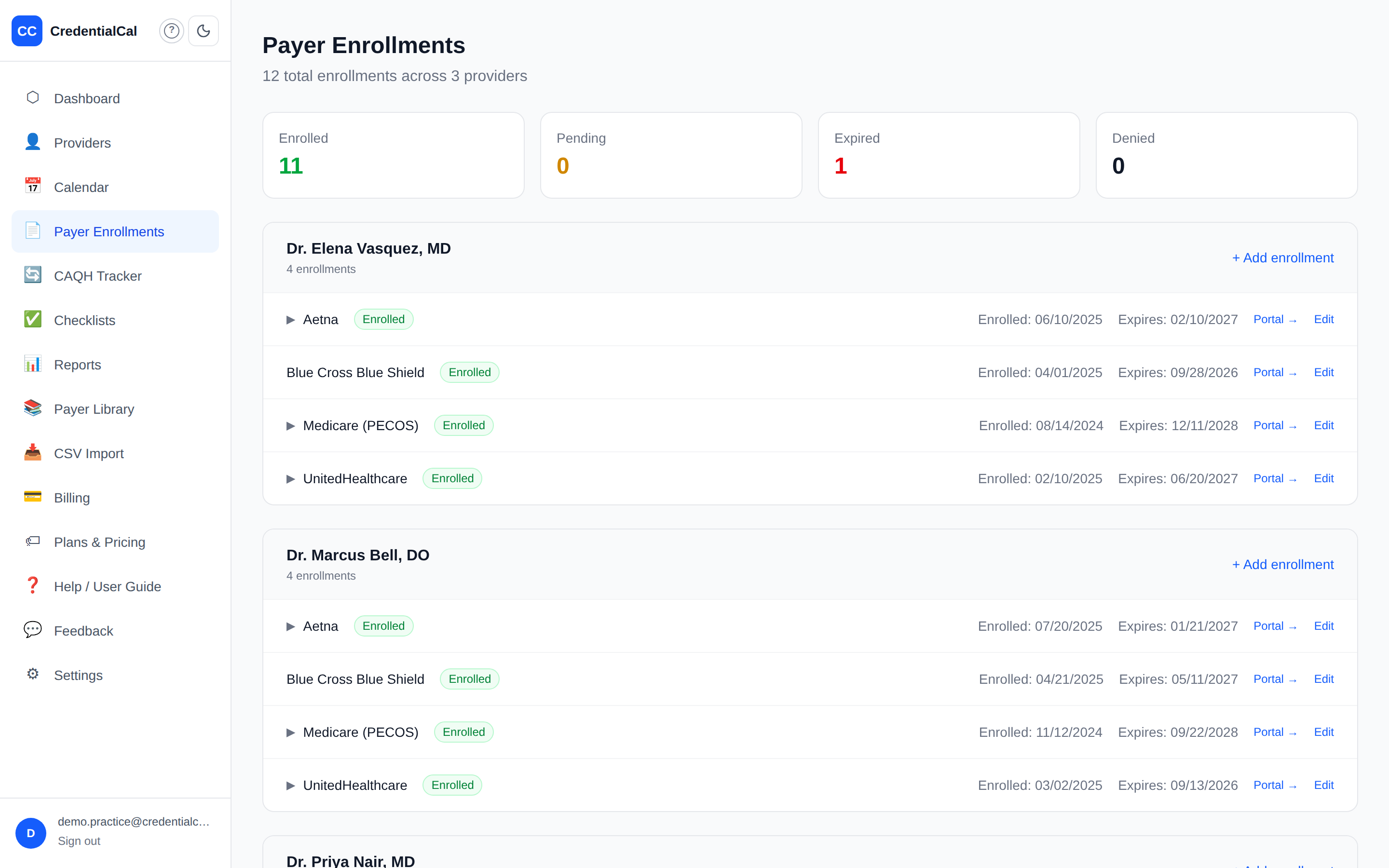
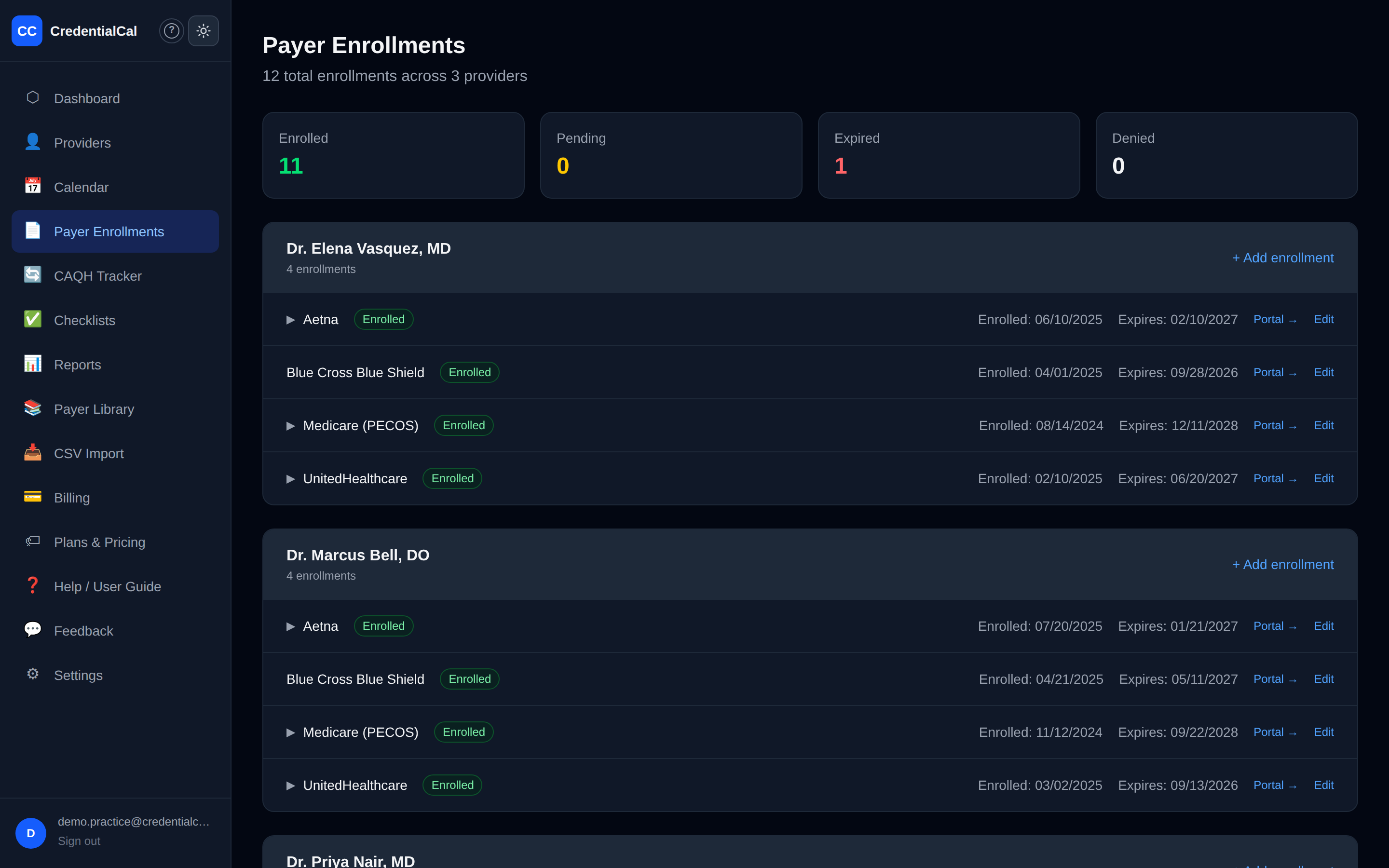
Four totals at the top (Enrolled / Pending / Expired / Denied), then every enrollment grouped by provider. Enrollments for payers in the built-in library expand inline to show that payer's step-by-step workflow, required documents, and known quirks.
Days-remaining colors: green > 90, yellow 31–90, red 1–30, bold = overdue.
Add an enrollment (/providers/[id]/enrollments/new)
Two modes: pick from the payer library (portal URL pre-filled, with processing-time and renewal-cycle hints) or enter a custom payer by name.
| Field | Required | Notes |
|---|---|---|
| Enrollment Status | Yes | Not enrolled / Pending / Enrolled / Expired / Denied |
| Enrollment Date | No | When the provider was enrolled |
| Expiration Date | No — required for alerts | |
| Re-credentialing Due | No | Falls back to the expiration date in views if not set |
| Last Submitted | No | Date the packet was last sent |
| Provider Portal URL | No | Auto-filled for library payers |
| Notes | No |
Edit pre-fills the same form; Remove enrollment deletes it permanently.
6. CAQH Attestation Tracker
URL: /caqh
CAQH ProView is the shared online profile insurance companies use to verify a provider's credentials. Someone must log in and click "Attest" every 120 days (Aetna allows 180). A lapse flips the profile inactive with no grace period — the single most common credentialing failure — and can pend claims at every major payer.
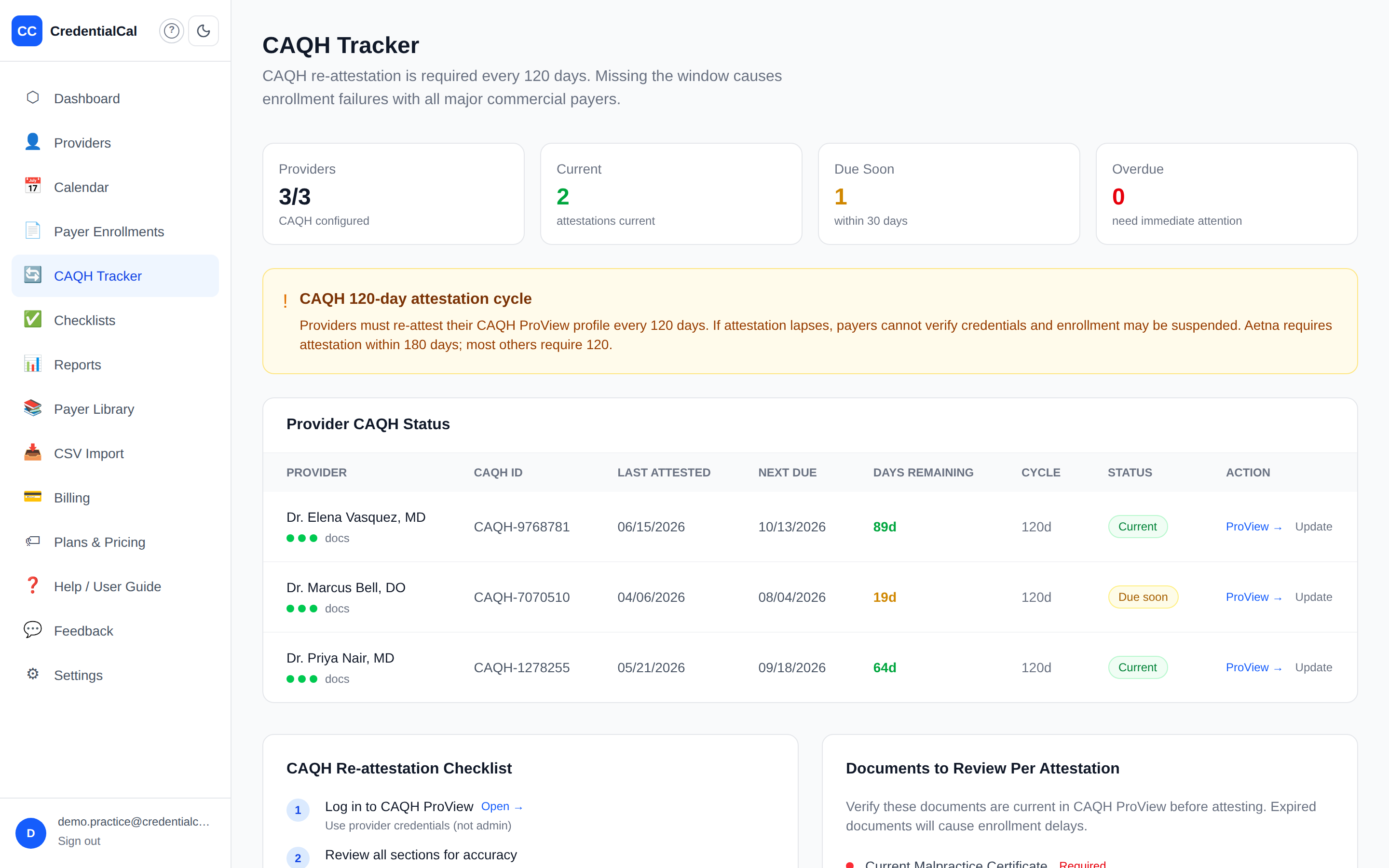
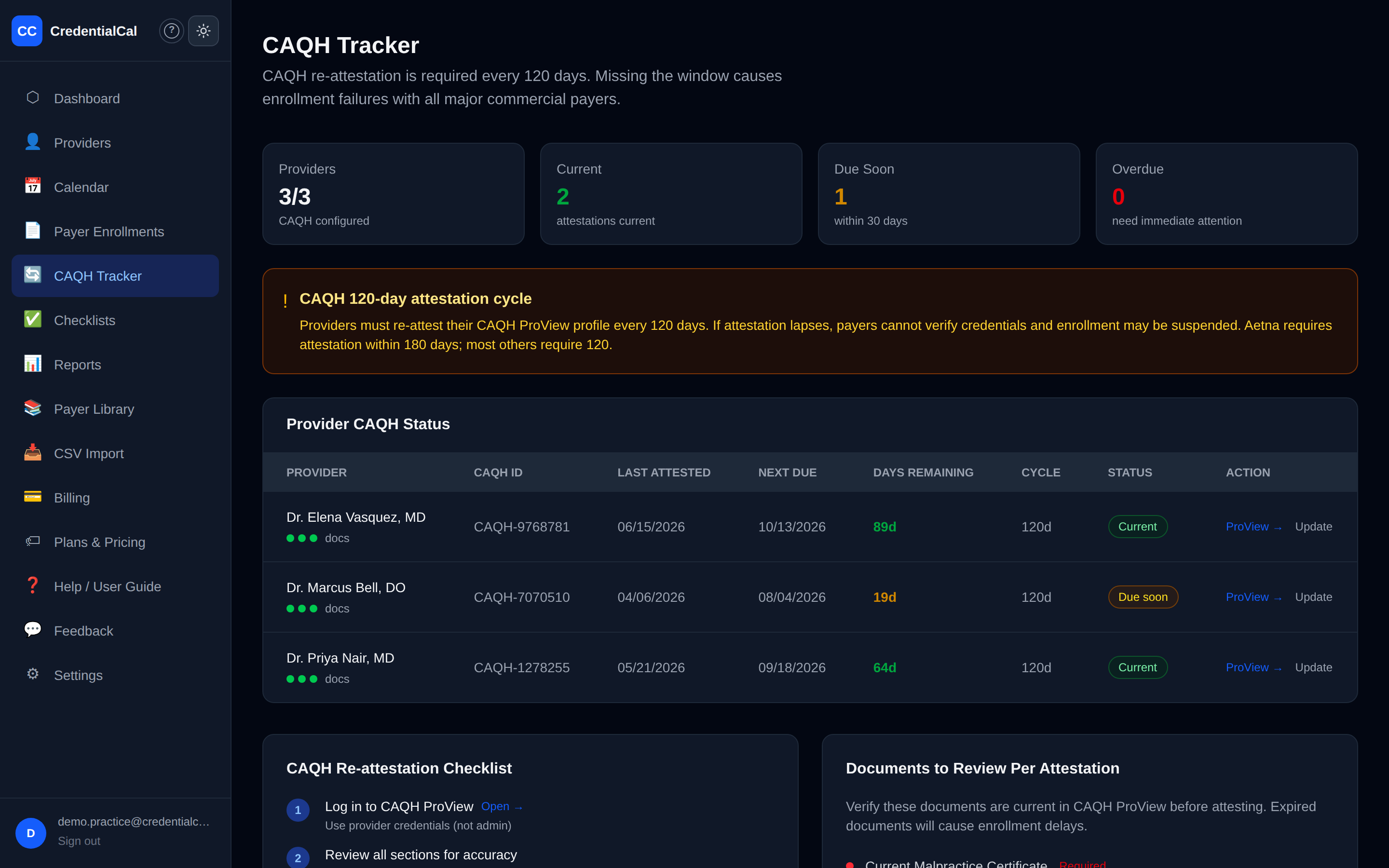
The page shows four summary tiles, a per-provider table (CAQH ID, last attested, next due, days remaining, status, and a direct ProView → link), a step-by-step re-attestation checklist, and the list of documents to have current before attesting.
Status meanings: Not configured (no dates entered yet — click Update), Current (> 30 days left), Due soon (8–30), Critical (1–7), OVERDUE.
Recording an attestation (/caqh/update/[providerId])
After the provider attests in ProView, click Update in their row and enter:
| Field | Required | Notes |
|---|---|---|
| CAQH Provider ID | No | Found in CAQH ProView under "My Profile" |
| Last Attestation Date | Yes | The date "Attest" was clicked. Next due = this date + cycle |
| Attestation Cycle (days) | No | Default 120. Aetna allows 180 |
| Notes | No |
The next-due date and countdown reset automatically.
7. Hospital Privileges
Tracked per provider on the provider's page (+ Add in the Hospital Privileges section):
| Field | Required | Notes |
|---|---|---|
| Facility Name | Yes | e.g., "Springfield General Hospital" |
| Facility NPI | No | The hospital's NPI (Type 2) |
| Privilege Type | No | Surgical, Admitting, Consulting, etc. |
| Granted Date | No | |
| Expiration Date | No — required for reappointment alerts | |
| Reappointment Window (days) | No | Default 90 |
| Notes | No |
Privilege expirations feed the same alert ladder as credentials.
8. Alert Engine
How alerts fire
The expiration scan runs three ways:
1. Automatically — a scheduled daily scan. The dashboard's scheduler health strip shows when it last ran and when the next run is expected. (Server setup lives in docs/CRON-SETUP.md.)
2. On demand — the dashboard's Check Expirations Now button.
3. Direct API — POST /api/cron/check-expirations (used by the scheduler; protected by CRON_SECRET for external callers).
Each run checks every active provider's credentials, payer enrollments, hospital privileges, and CAQH attestation.
When you get warned
By default, an alert fires when a deadline crosses 90, 60, 30, and 7 days out (CAQH: 30, 14, 7, and 1 days). You can change these lead times per credential type in Settings → Alert Thresholds. Each threshold fires once — you won't get the same warning twice unless the item stays unresolved past the next threshold.
Alert severity is based on how close the deadline is:
| Days until expiration | Severity |
|---|---|
| More than 30 | INFO |
| 8–30 | WARNING |
| 1–7 | CRITICAL |
| Past due | OVERDUE — re-fires daily until resolved |
Where alerts go
- In-app, always: alerts appear on the Dashboard (Active Alerts) and may generate a Renewal Checklist.
- By email: each scan that creates new alerts also sends one digest email to your practice's Alert Email (Settings); if that's blank, it goes to the account owner's login email. Email delivery depends on the server's email service being configured — the dashboard is always the source of truth.
- To escalation contacts: if you've set an Escalation Contact (on a provider, or per credential type in Settings), that contact is emailed separately — but only for items that are 7 days or fewer from expiring, or already overdue. They are deliberately not emailed at the earlier 90/60/30-day notices, which go to your Alert Email only.
How escalation routing works: an item escalates to both the provider's escalation contact and the contact set for that credential type, if both exist — they're different roles and neither is silently skipped. One person receives one email listing all their items, even if they're listed in both places. Anyone who already received the practice digest isn't emailed twice.
Acting on an alert
Each alert on the dashboard offers three buttons:
- Dismiss — acknowledges it. It leaves the dashboard but stays in the system. Does not mark the underlying item renewed.
- Snooze 7d — hides it for 7 days, then it comes back.
- Resolve — archives it. Use this once the item has actually been renewed.
9. Renewal Checklists
URL: /checklists
When an alert fires, CredentialCal automatically generates a checklist of ordered action steps for that renewal — which form, which portal, which documents. Each checklist shows the provider, the alert's severity badge, and its items with checkboxes.
Click a checkbox to mark a step done — it saves instantly (completed items show struck through). Checklists are generated by the alert engine; you can't create or edit them by hand.
10. CSV Import
URL: /import
Brings your existing Excel tracking sheet in all at once. Save it as CSV first (File → Save As → CSV in Excel).
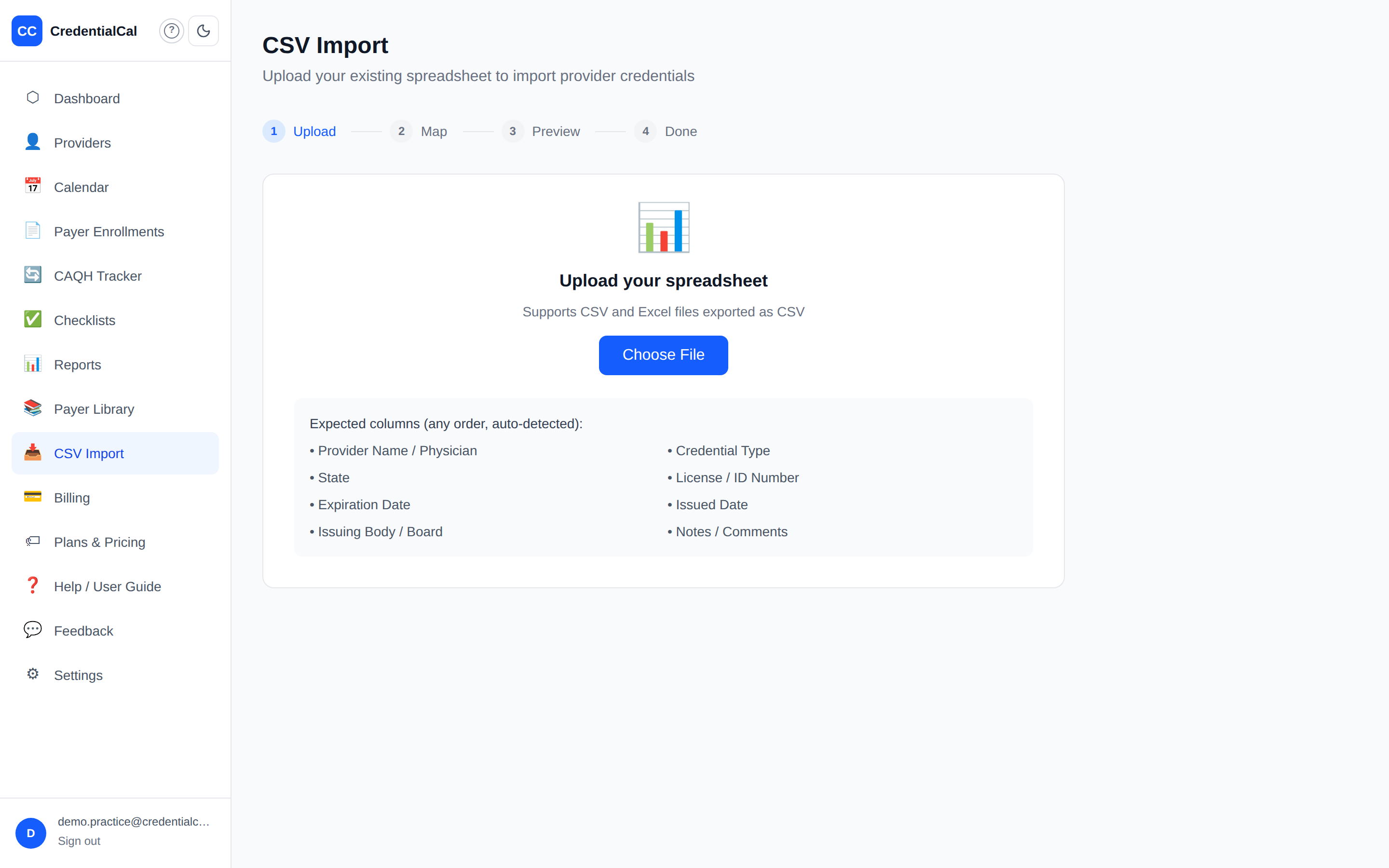
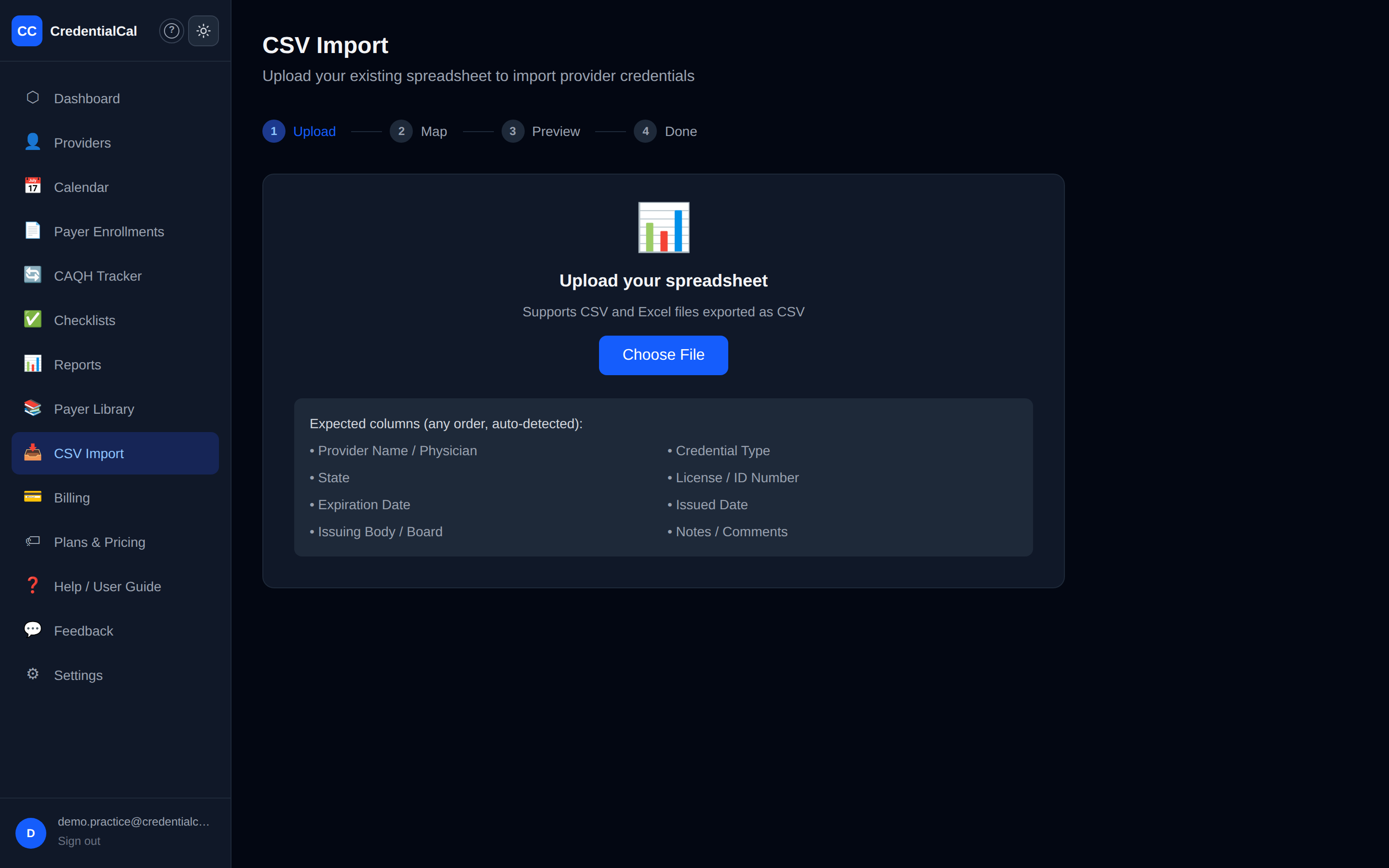
1. Upload — click Choose File and pick the .csv. Column names are auto-detected from the headers.
2. Map columns — confirm (or fix) which CSV column feeds which field. Anything mapped to "(skip)" is ignored. Recognized fields: Provider Name, Credential Type, State, License Number, Expiration Date, Issued Date, Issuing Body, Notes.
3. Preview — the first 20 rows exactly as they'll be imported. Check names and dates.
4. Import — nothing is saved until you click this. Providers are found or created automatically from the names in the file, then one credential is created per row. You get a count of what was imported plus any row-level errors.
Credential-type values in the file are matched loosely ("dea", "board cert", "medical license", etc.); anything unrecognized imports as a State License, which you can edit afterwards.
11. Payer Workflow Library
URL: /payer-library
12 built-in payers covering roughly 70% of US commercial insurance volume. For each: numbered enrollment steps with URLs, the required-document list, known quirks, typical processing time, renewal cycle, and a direct portal link.
| Payer | Portal | Processing | Renewal |
|---|---|---|---|
| Aetna | NaviNet | 60 days | 36 months |
| Anthem / BCBS (Midwest) | Anthem Provider | 90 days | 36 months |
| Cigna | Cigna for HCP | 60 days | 36 months |
| UnitedHealthcare | UHC Provider | 60 days | 36 months |
| Humana | Humana Provider | 60 days | 36 months |
| Medicare (PECOS) | PECOS | 60 days | 60 months |
| Medicaid (Illinois) | ILMMIS | 90 days | 36 months |
| Medicaid (Texas) | TMHP | 60 days | 36 months |
| TRICARE | TriWest | 45 days | 36 months |
| Oscar Health | Oscar Provider | 45 days | 36 months |
| Centene | Centene Provider | 60 days | 36 months |
| Molina Healthcare | Molina Provider | 60 days | 36 months |
Selecting a library payer when adding an enrollment auto-fills the portal URL and shows its processing/renewal hints; the same workflow expands inline on the Payer Enrollments page.
12. Reports
URL: /reports
A practice-wide compliance report you can hand to an administrator or surveyor:
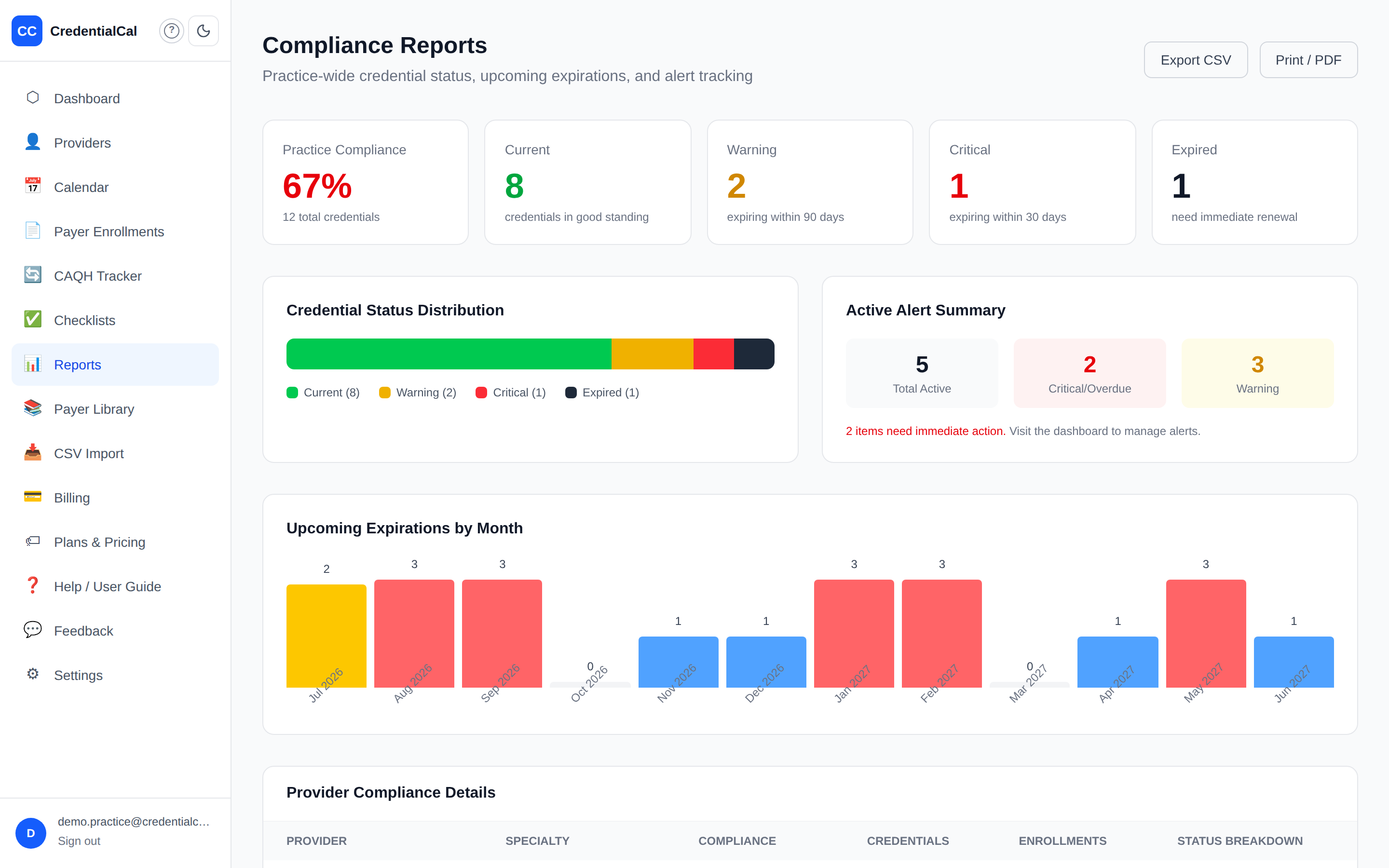
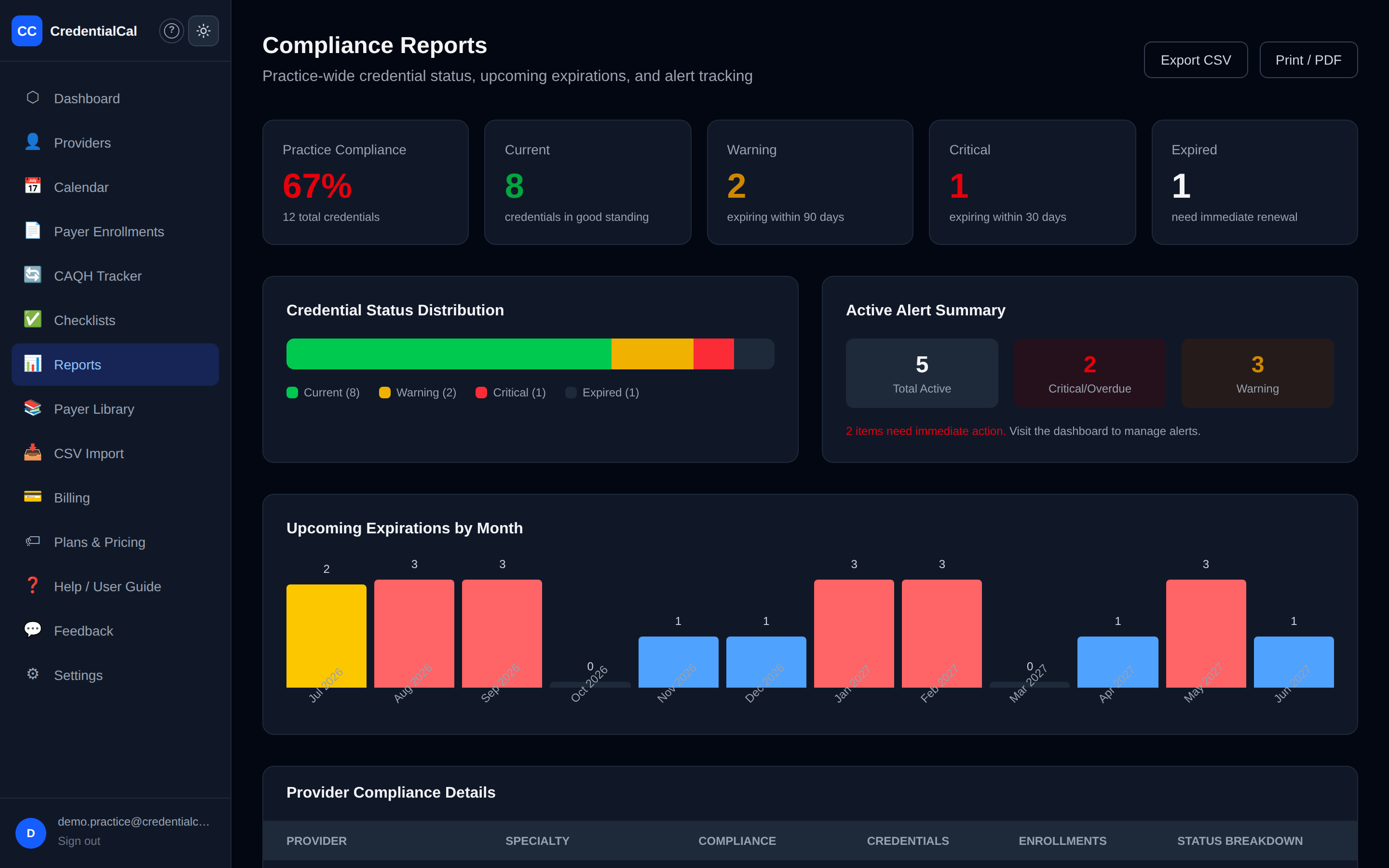
- Summary tiles — practice compliance %, and counts of current / warning (within 90 days) / critical (within 30) / expired credentials.
- Status distribution bar and an active-alert summary.
- Upcoming Expirations by Month — a 12-month bar chart so you can see heavy renewal months coming.
- Provider Compliance Details — per-provider score, credential count, enrollment count, and a per-credential status dot row.
Export CSV downloads every credential with its expiration date and status as a spreadsheet. Print / PDF uses your browser's print dialog to produce a paper or PDF copy of the page.
13. Billing & Subscription
URL: /billing
Pricing (monthly)
| Providers | Monthly |
|---|---|
| 1–3 | $89 |
| 4 | $118 |
| 5 | $147 |
| Each additional | +$29 |
Price is calculated from your active provider count — deactivating a provider lowers it. Billing is monthly through Stripe; cancel anytime.
Managing it
The page shows your status (Free trial / Active / Past due / Canceled), provider count, calculated monthly cost, and the next renewal or cancellation date.
- On trial: click Subscribe to pay via Stripe's secure checkout page.
- Active: click Manage billing in Stripe portal to update the card, view invoices, or cancel.
14. Settings
URL: /settings
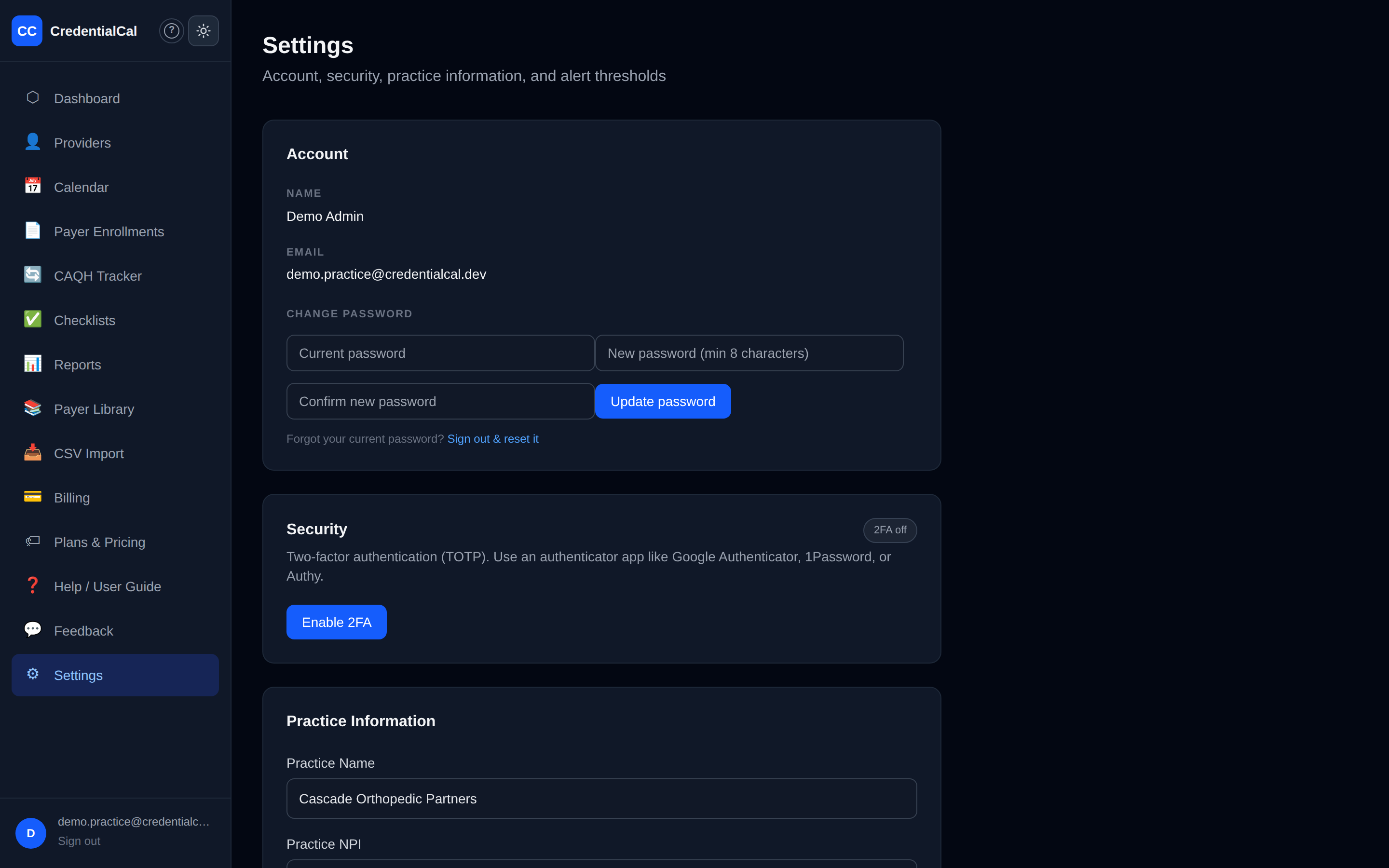
Account & Security
Your name, email, password change, and optional two-factor authentication (authenticator app) — all self-serve.
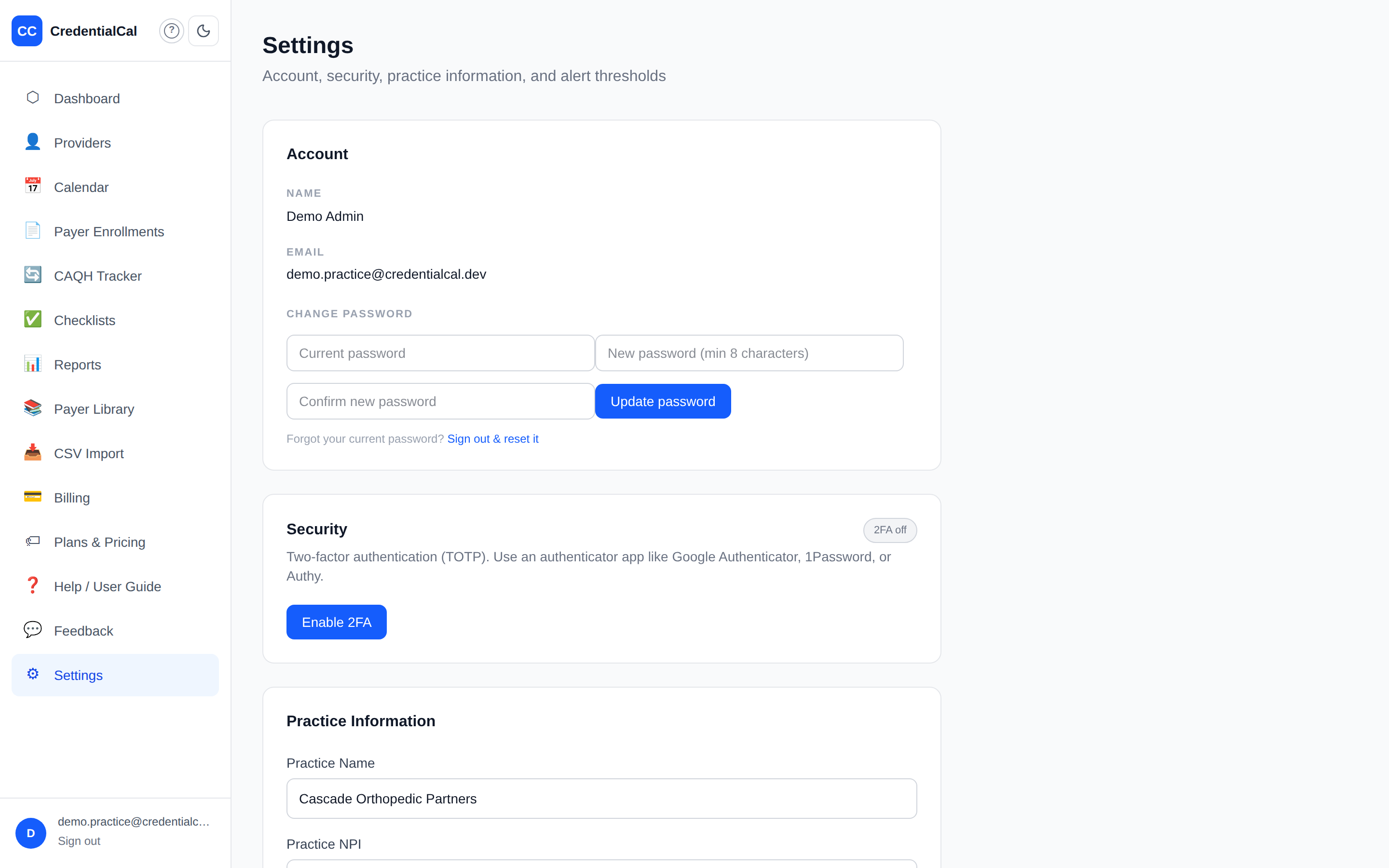
Practice Information
Practice Name, Practice NPI, Billing Contact Name, Alert Email (where all expiration alert emails go — usually the office manager; blank = the owner's login email), and Address. Click Save changes.
Alert Thresholds
How far ahead of each deadline you get warned, configurable per credential type. Defaults: 90/60/30/7 days (CAQH: 30/14/7/1; board certs: 120/90/60/30 suggested). Expand a type, edit or add day values, and click Save. Give slow renewals — board certifications, hospital reappointments — longer lead times.
Each type also has Escalation Contact Name / Email fields. That contact is emailed when an item of this type reaches 7 days or fewer until expiration, or goes overdue — not at the earlier notices. Providers can also carry their own escalation contact (Providers → edit a provider). See Where alerts go.
OVERDUE alerts re-fire daily after expiration until the item is renewed or resolved.
Architecture Notes (for Artie)
- Auth: MartelloAuth (NextAuth credentials + Google via broker). Session JWT carries
user.id; API routes userequireAuth().SKIP_AUTH=trueonly works outside production. - Practice resolution:
getOrCreatePractice()auto-provisions on first dashboard visit (no forced onboarding wall) and re-links a stranded practice bybillingEmailwhen the shared-auth userId was recycled (only if the old owner no longer exists in the auth DB). - Database: Prisma. Models: Practice, Provider, Credential, PayerEnrollment, HospitalPrivilege, CAQHAttestation, Alert, Checklist(+Items), AlertThreshold, Subscription, ApiKey, AuditLog.
- Alert engine:
src/lib/alert-engine.ts, synchronous, called by the cron route and the dashboard button. Trigger days come from AlertThreshold rows (fallback 90/60/30/7; CAQH 30/14/7/1). Severity: ≤7 CRITICAL, ≤30 WARNING, else INFO; expired = OVERDUE. Practice digest goes to practice.billingEmail → owner email. - Escalation: wired 2026-07-15.
sendEscalations()emails Provider.escalationEmail + AlertThreshold.escalationEmail (union, deduped by address, digest recipient skipped) for the CRITICAL/OVERDUE subset of each run's newly created alerts — so an item escalates when it crosses the line, not daily. Routing core is the pureresolveEscalationRecipients(), pinned bysrc/lib/__tests__/escalation-routing.test.ts. - Alert cron:
crontab13:00 UTC daily →scripts/cron-expiration-check.sh→scripts/run-expiration-check.js→POST /api/cron/check-expirationswithAuthorization: Bearer $CRON_SECRET. Env via~/.secrets/app-credentialcal.env(never in the crontab). Log:logs/cron-expiration-check.log. - Email: Brevo via the keys gateway (
src/lib/email.ts); no gateway URL = console stub, and sends reportsent | stubbed | failed. - Payer workflows: static data in
src/lib/payer-workflows.ts— 12 entries, no DB. - Stripe: Checkout sessions with server-calculated price ($89 base / +$29 per provider past 3). Monthly only — no annual plan exists (an earlier manual claimed "annual: 2 months free"; removed as inaccurate).
- Help surface:
/helprenders this file and is public (no account data) —src/app/help/+ middleware exclusion.